concepts
Members and Roles
Three roles control who can read, write, and administer a workspace.
Every workspace member has exactly one role. Roles are hierarchical - a higher role grants every permission of the lower roles, plus additional ones.
The three roles
| Role | Read | Write docs | Manage projects | Manage members | Workspace settings |
|---|---|---|---|---|---|
| Viewer | ✓ | ||||
| Developer | ✓ | ✓ | ✓ | ||
| Admin | ✓ | ✓ | ✓ | ✓ | ✓ |
Viewer
Read-only access. Can browse projects, read documentation, view comments. Cannot create, edit, or delete anything. Useful for stakeholders, auditors, or read-only access to executives.
Developer
The default role for invitations. Can:
- Read everything
- Write and edit documentation
- Create code references
- Post comments
- Import new projects
- Sync existing projects
Cannot manage members, change roles, or delete projects.
Admin
Full control over the workspace. In addition to Developer permissions:
- Invite, remove, and re-role members
- Edit workspace name and description
- Delete projects
- Delete the workspace (owner only)
The owner
The user who created the workspace is the owner - automatically an admin, but with two extra abilities:
- Cannot be removed by other admins
- Can delete the workspace
There is exactly one owner per workspace, and ownership is not transferable in the current version.
Changing a member's role
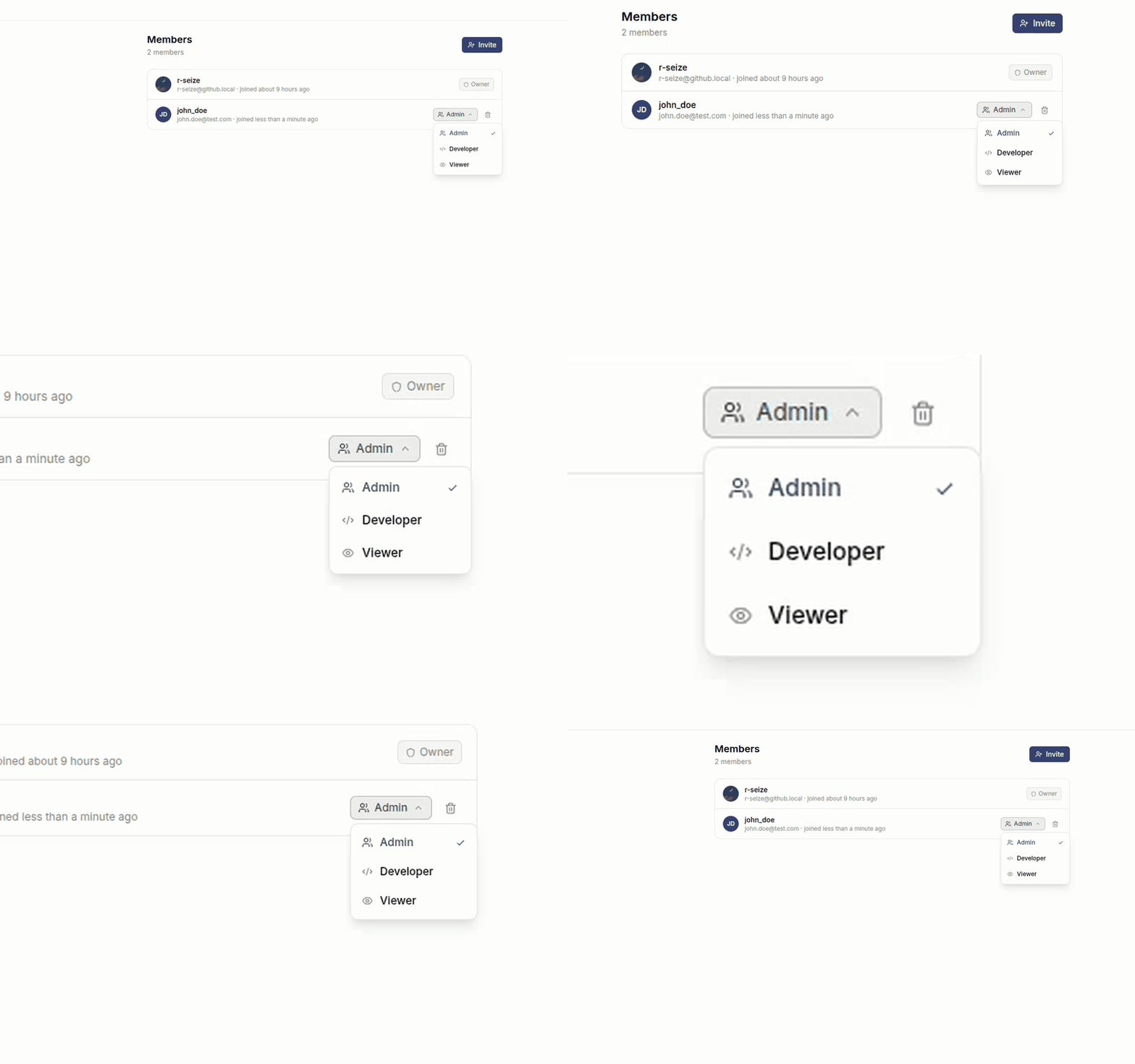
In Members, click the role dropdown next to a member's name. Pick a new role. The change applies immediately.
Removing a member
Click the ⋯ menu next to a member and select Remove from workspace. The member loses access immediately. Their authored documentation and comments remain attributed to their username.
You cannot remove the owner. To transfer ownership, you'd need to manipulate the database directly.
Self-management
Members can leave a workspace from the Members page (their own row → Leave workspace). This frees up the seat without admin involvement.
The owner cannot leave. They must transfer ownership (database-only operation in current version) or delete the workspace.
Next
- Inviting Members - the click-path for sending an invite