features
Inviting Members
Add team members to a workspace by email or shareable link.
A workspace is multi-user from day one. Invite collaborators with the role you want them to have, then they can access projects, write documentation, and comment.
Sending an invitation
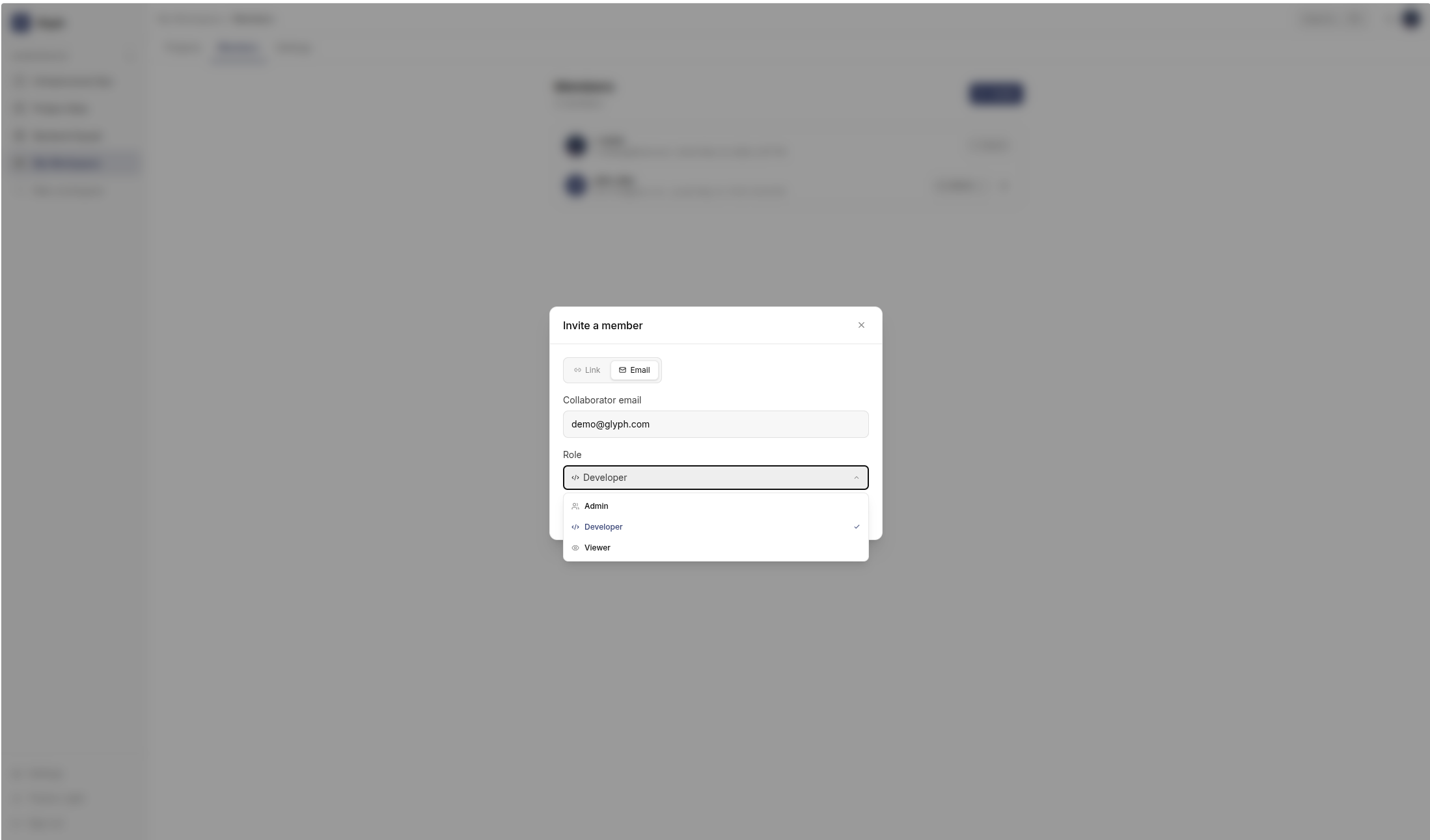
- Open the workspace and go to Members.
- Click Invite a member.
- Enter the email address and choose a role (Admin, Developer, or Viewer).
- Click Send invitation.
How the email is delivered
If an email provider is configured (Resend, SendGrid, Mailgun, or SMTP), Glyph sends an invitation email containing a sign-up link.
If no email provider is configured, Glyph still creates the invitation but does not send an email. The invitation link is shown in the UI immediately after creation - copy it and share it manually (Slack, Teams, etc.).
Self-hosted setups without an email provider can still use invitations - just copy the link.
Accepting an invitation
The recipient clicks the link, which opens /invite?token=....
- If they don't have a Glyph account, they're guided to sign up - the email field is pre-filled and locked to match the invitation.
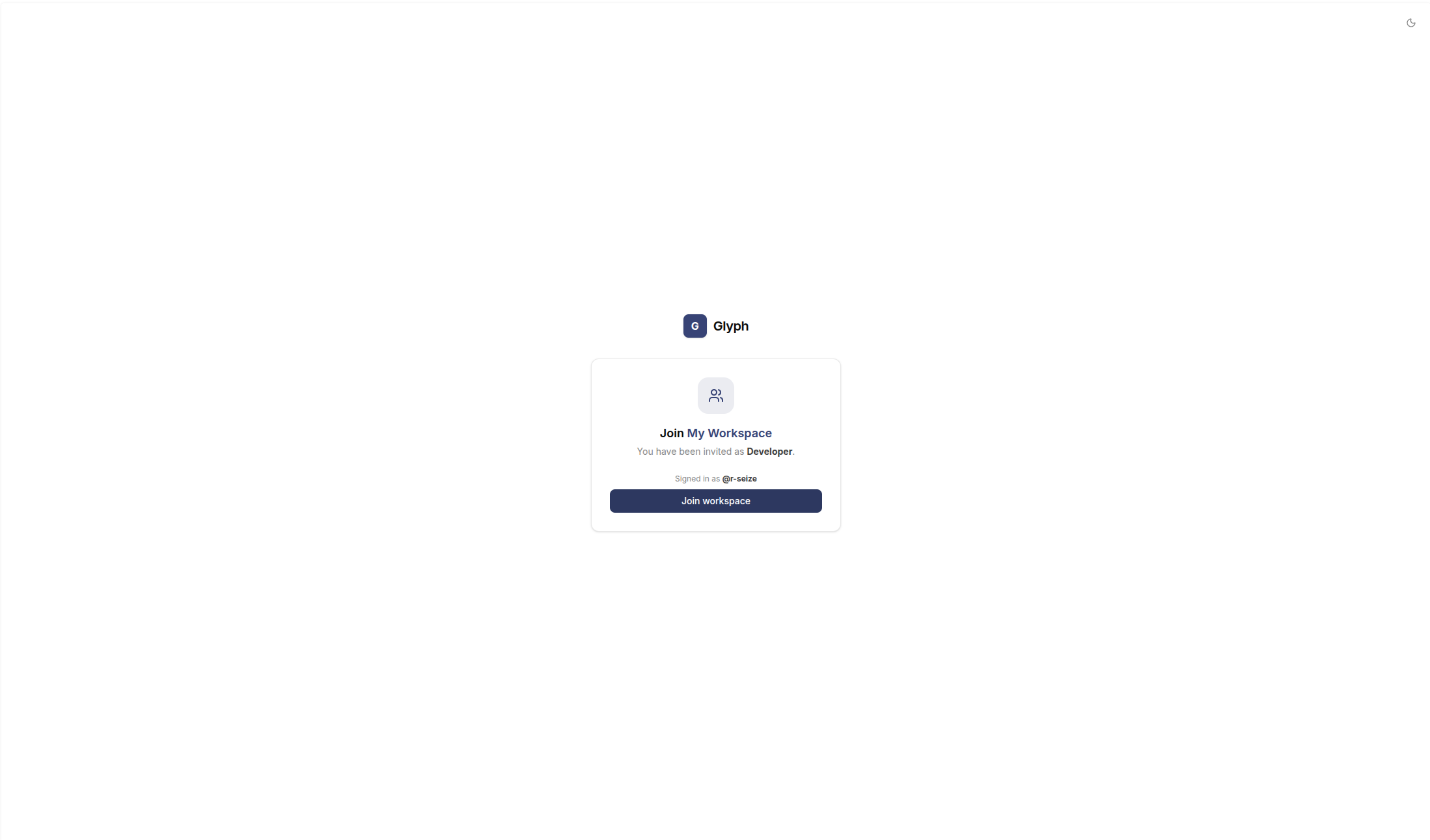
- If they're already signed in, they see a confirmation screen with the workspace name and the role they'll receive. They click Accept or Decline.
After acceptance, they land on the workspace dashboard with the assigned role.
Invitation lifetime
Invitations expire after 7 days. Expired or already-used links return an error and need to be re-issued.
Managing pending invitations
The Members page lists pending invitations alongside active members. Admins can:
- Resend an invitation (regenerates the email if a provider is configured)
- Revoke a pending invitation (the link stops working immediately)
- Change role of an active member
- Remove an active member
Removing a member revokes their access to the workspace immediately, but documentation they wrote remains attributed to their username.