getting started
First Steps
Create an account, set up a workspace, and document your first file.
Glyph is running. Let's walk through the essential flow.
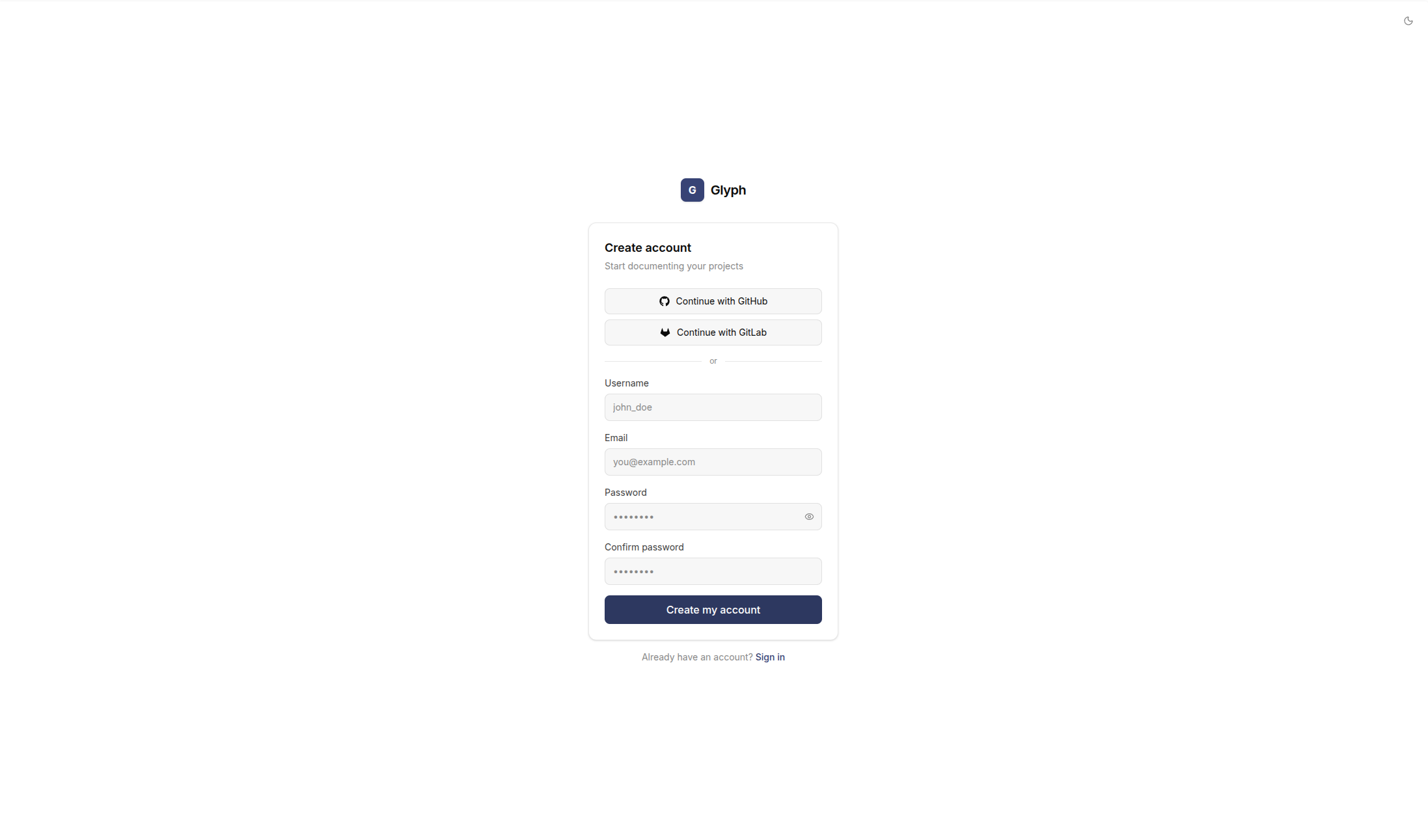
1. Create your account
Open http://localhost:3000 and click Sign up.
Fill in:
- Username - used for
@mentions - Email - used for invitations
- Password - 8 characters minimum
The first account on a fresh instance becomes the owner of the default workspace.
2. Connect a Git account
Go to Settings → Connected accounts and add a GitHub or GitLab account using a Personal Access Token.
The full flow is documented in Connecting Accounts - short version:
- GitHub: github.com → Settings → Developer Settings → Personal access tokens → Tokens (classic) → New token with
repo,read:user,read:orgscopes. - GitLab: gitlab.com → User Settings → Access Tokens → Generate legacy token with
read_userandread_apiscopes.
You can skip this step if you only plan to use Local Upload projects.
3. Import a project
From your workspace, click Add a project. Pick a source:
- GitHub / GitLab - pick from your repository list
- Git URL - clone any public or private Git URL
- Local - drag a folder onto the drop zone
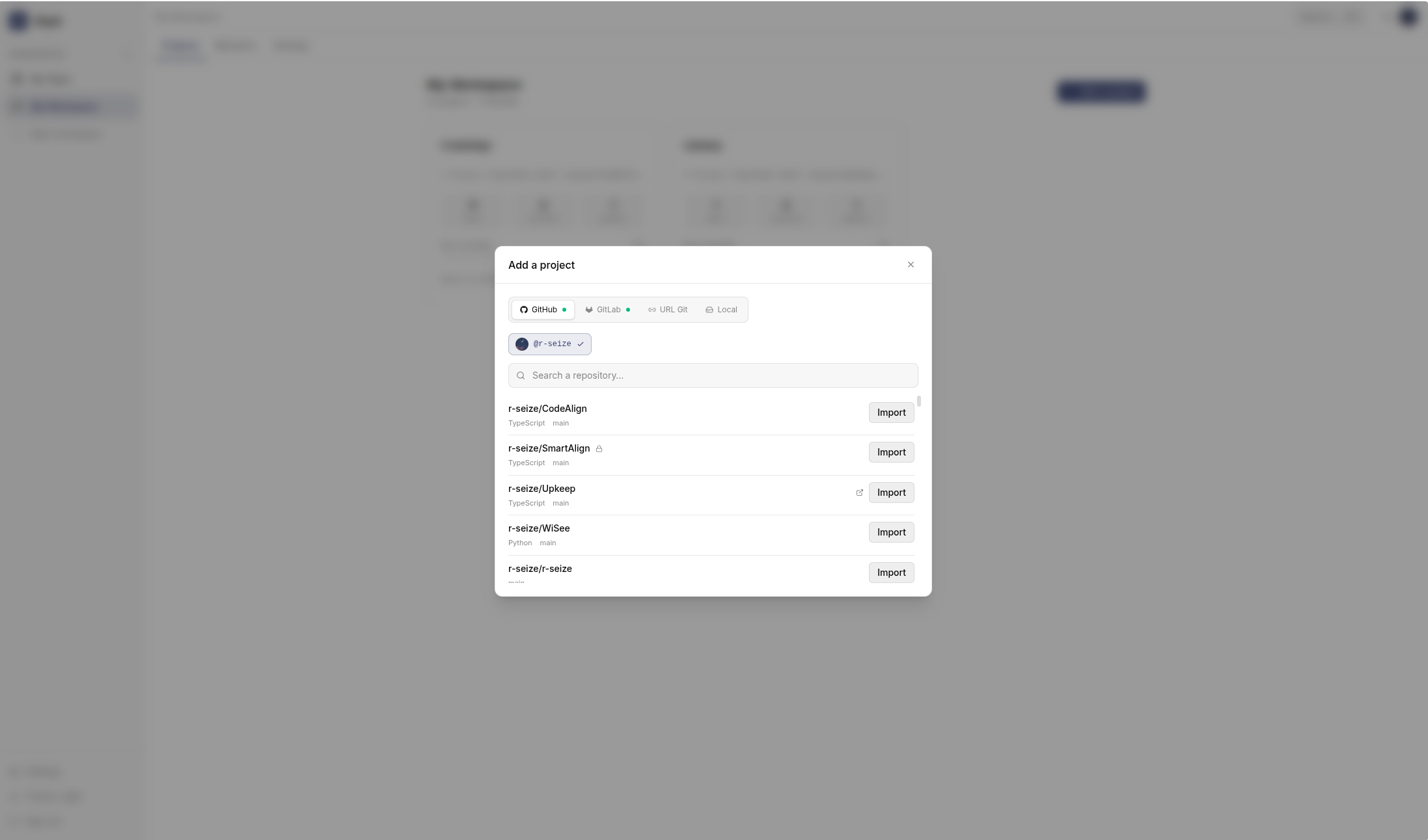
The first sync runs in the background. You'll see commits and files appear within a few seconds.
4. Open a file
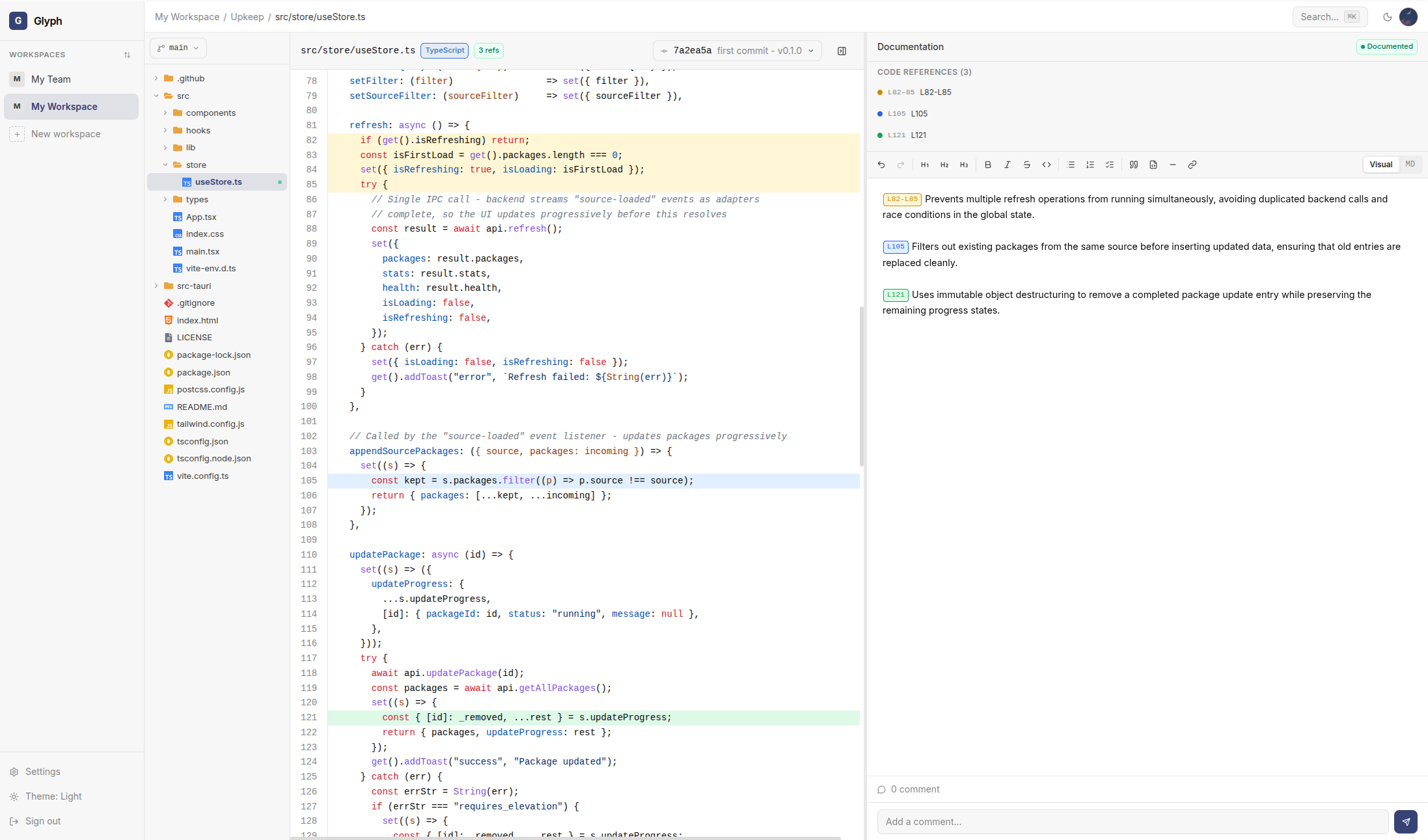
Click on a file in the file tree. The code shows in the middle, the documentation editor on the right.
The file is empty of docs - let's fix that.
5. Write your first doc
In the right panel, type a short description of what the file does. Glyph saves automatically every 1.5 seconds, or instantly with Ctrl+S.
A green ✓ appears when the save lands.
6. Add a code reference
In the code panel, click line 1, then Shift+click line 5 to select a range. The Code references panel opens - give the selection a label like entry-point and click Save.
Back in the editor, type {{ to open the references picker. Pick entry-point - Glyph inserts a clickable chip.
You've just linked documentation to specific code, in a way that survives refactors and stays attached to the right commit.
What's next
- Invite teammates to collaborate
- Browse Core Concepts to understand the data model
- Review Configuration to fine-tune your install