concepts
Projects
Four ways to import a project, and what happens internally.
A project is a Git repository (real or synthetic) that Glyph clones, indexes, and lets you document. Every project belongs to exactly one workspace.
Four sources
| Source | Backed by | Best for |
|---|---|---|
| GitHub | Cloned via your PAT | Your team's GitHub repos |
| GitLab | Cloned via your PAT | Your team's GitLab repos (.com or self-hosted) |
| Git URL | Cloned via embedded credentials or anonymous | Bitbucket, Gitea, your own server |
| Local Upload | New Git repo created by Glyph | Loose folders, code without a remote |
See Importing a Project for the click-paths.
What happens on import
Regardless of source, Glyph:
- Creates a Project record in the database (id, name, workspace, default branch, repo URL if any)
- Clones the repo (or initializes an empty one for Local) under
volumes/data/<project_id>/ - Triggers a background sync that:
- Pulls the latest commits (Git-backed projects)
- Inserts every commit into the database (sha, message, author, date)
- Reindexes the file tree, documentation, and project metadata in Meilisearch
After step 3 you can browse files, view commits, and write documentation.
Sync mechanism
Sync can be triggered manually from the project page (top right Sync button) or via the API. It runs as a background task - the response returns immediately and you can keep working.
For Git-backed projects, sync does:
git fetch origin --prune
git pull origin <default_branch>
Before pulling, Glyph checks the remote for conflicts (see below). If none are found, new commits are added to the database and Meilisearch is reindexed.
If your access token has been revoked or expired, the sync fails silently with a logged error. Reconnect the account to recover.
For Local Upload projects, Sync is hidden - there's no remote to sync from. Use Import files to add more content.
Default branch
Each project has a default_branch field (default: main). It controls:
- Which branch is selected when you open the project
- Which branch is pulled during automatic sync
- Which commits show up in the contributors panel
You can change the default branch in Project settings.
Sync conflicts
Before every sync, Glyph compares the local state against the remote and blocks if it detects a conflict. A dialog opens immediately with the details and your choices.
Branch deleted
When the default branch no longer exists on the remote, Glyph returns a 409 Conflict with the list of available branches. The dialog lets you:
- Switch to one of the available branches (updates
default_branchwithout syncing) - Continue anyway - keeps the current branch name as
default_brancheven though it's gone (useful if it will be recreated)
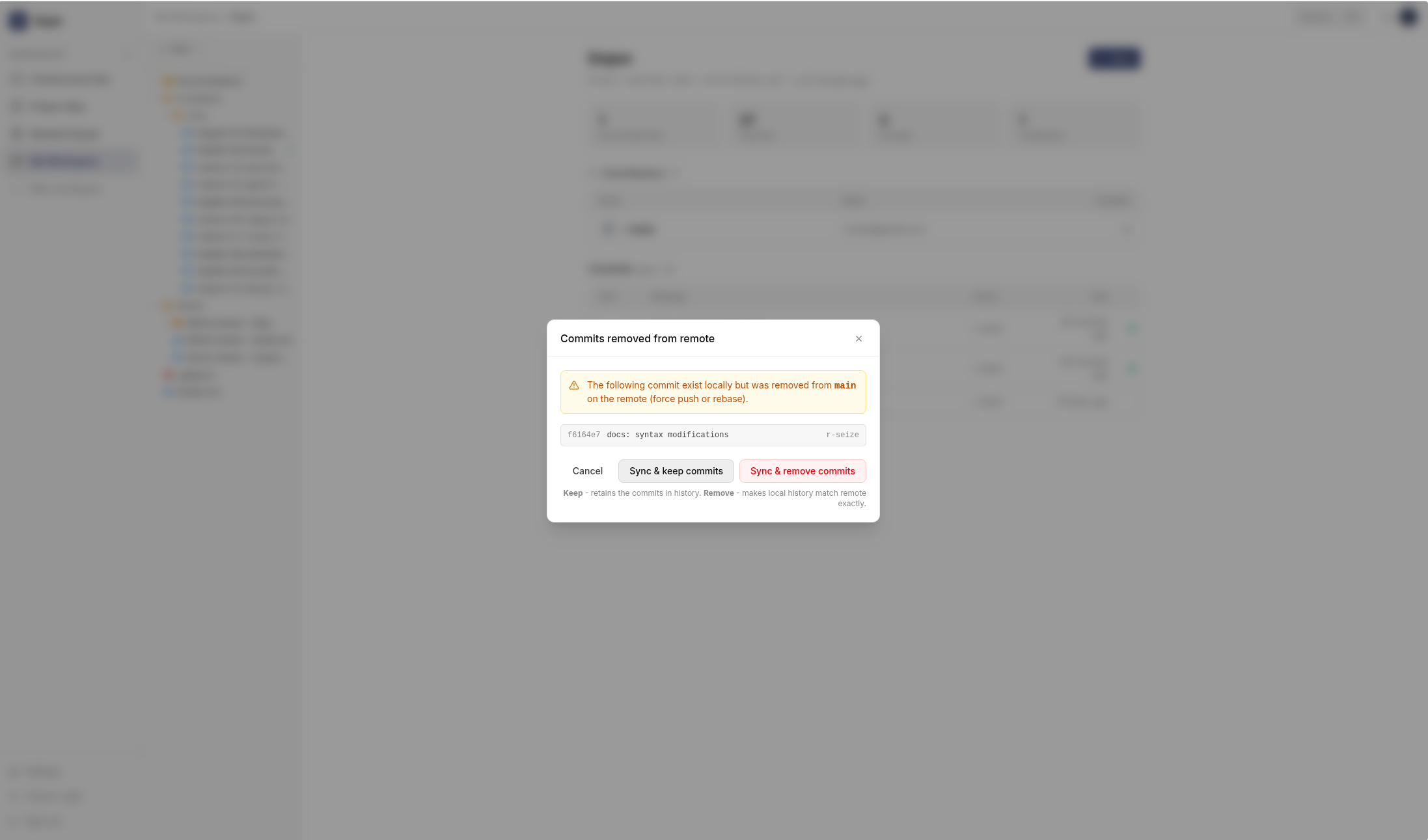
Commits removed from remote
When commits exist locally but are absent from the remote branch - typically after a force push or interactive rebase - Glyph lists each affected commit by short SHA, message, and author. You choose one of three actions:
| Action | What happens |
|---|---|
| Cancel | Sync is aborted, nothing changes |
| Sync & keep commits | Remote history is pulled; the removed commits remain in the database and are still visible in the commit list |
| Sync & remove commits | Remote history is pulled and the removed commits are deleted from the database, making local history match the remote exactly |
"Sync & remove commits" is irreversible. Any documentation comments or references attached to those commits will also be deleted.
Removing a project
From the project page, Settings → Delete project. This:
- Removes the local clone from disk
- Drops all documentation, references, and comments for the project
- Removes the project from search indices
The remote repository is not touched.
There is no soft-delete or undo. Back up your database first if you might need the documentation later.