features
Browsing Files
Navigate files, branches, commits, and contributors in a project.
A project page is split into three areas: a file tree on the left, the code viewer in the middle, and the documentation panel on the right.
File tree
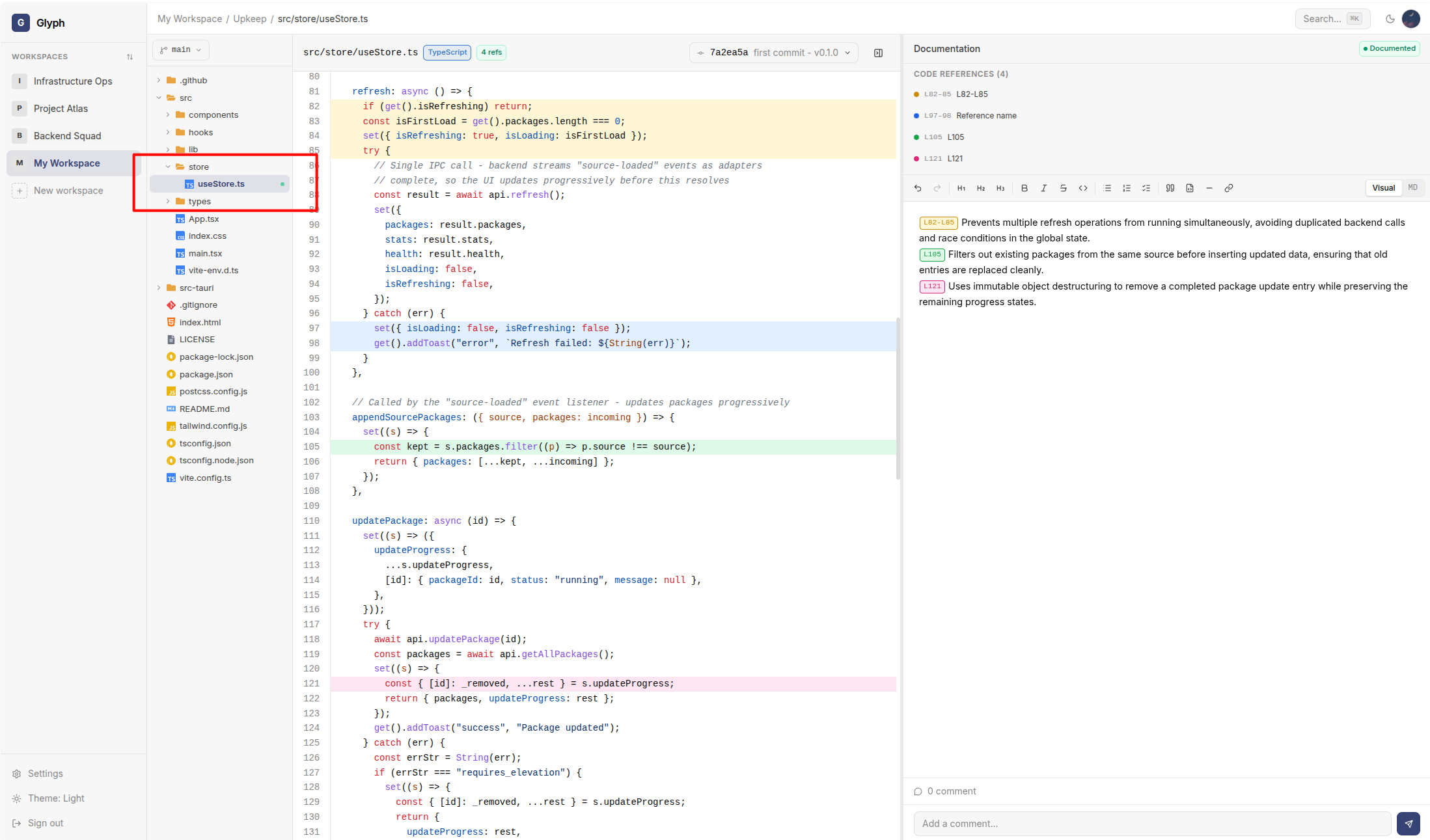
The file tree shows the project's directory structure at the currently selected branch and commit. Folders expand on click, files open in the code viewer.
A green dot badge next to a file indicates that the file already has documentation attached at the current commit.
Branch selector
Above the file tree, a dropdown shows the current branch. Switching branches reloads the file tree and any open file at the head of the new branch.
For Git-backed projects, branches are pulled from the remote on each sync. Local-upload projects only have the default branch (main by default).
Commit selector
In the code panel toolbar, a commit picker lets you scrub through history. Selecting an older commit shows:
- The file content at that commit
- The documentation that was current at that commit (or empty if none was written yet)
- The references that existed at that commit
This is the visual representation of the documentation model.
Code viewer
The middle panel displays the file with syntax highlighting (via Shiki). Features:
- Line numbers - clickable to start a code-reference selection
- Language badge - detected from the file extension
- Reference highlights - colored bars in the gutter for any line range covered by a reference
- References count - badge in the toolbar showing how many references are in this file
For images (.png, .jpg, .svg, etc.), the code viewer renders the image directly instead of attempting to display it as text.
Resizable panels
The boundary between code and documentation is a draggable handle. Resize to your preference - the width is persisted in localStorage.
You can also fully collapse the doc panel using the toolbar button. Useful when reviewing code you don't need to document.
Contributors panel
The project page has a Contributors section listing every Git commit author with their commit count. Useful for figuring out who to @mention when you have a question.